
Getting started
From building RustZ to converting your first batch of files takes about five minutes.
1. Build
You need Rust 1.95 or newer (install it with rustup). In the source folder, run:
cargo build --releaseThat produces two programs:
target/release/rustz— the desktop apptarget/release/rustz-cli— the command-line tool
On macOS, sh tools/bundle_macos.sh wraps it into RustZ.app, which you can drag to Applications and keep in the Dock. Installation covers each platform.
2. Convert a folder in the app
- Open
rustzand drop a folder onto the window (or use + 加入資料夾, Add folder, at the top right). - The list shows the encoding detected for each file. Click any file to see the original and the converted text side by side.
- In 轉換設定 (Conversion settings) on the right, set 目標編碼 (Target encoding) to UTF-8. Leave 字形 (Script) on 自動 (Auto) to change the encoding only.
- Press 開始轉換 (Start). RustZ asks once more before overwriting the originals, and by default backs each one up as
name.bakfirst.
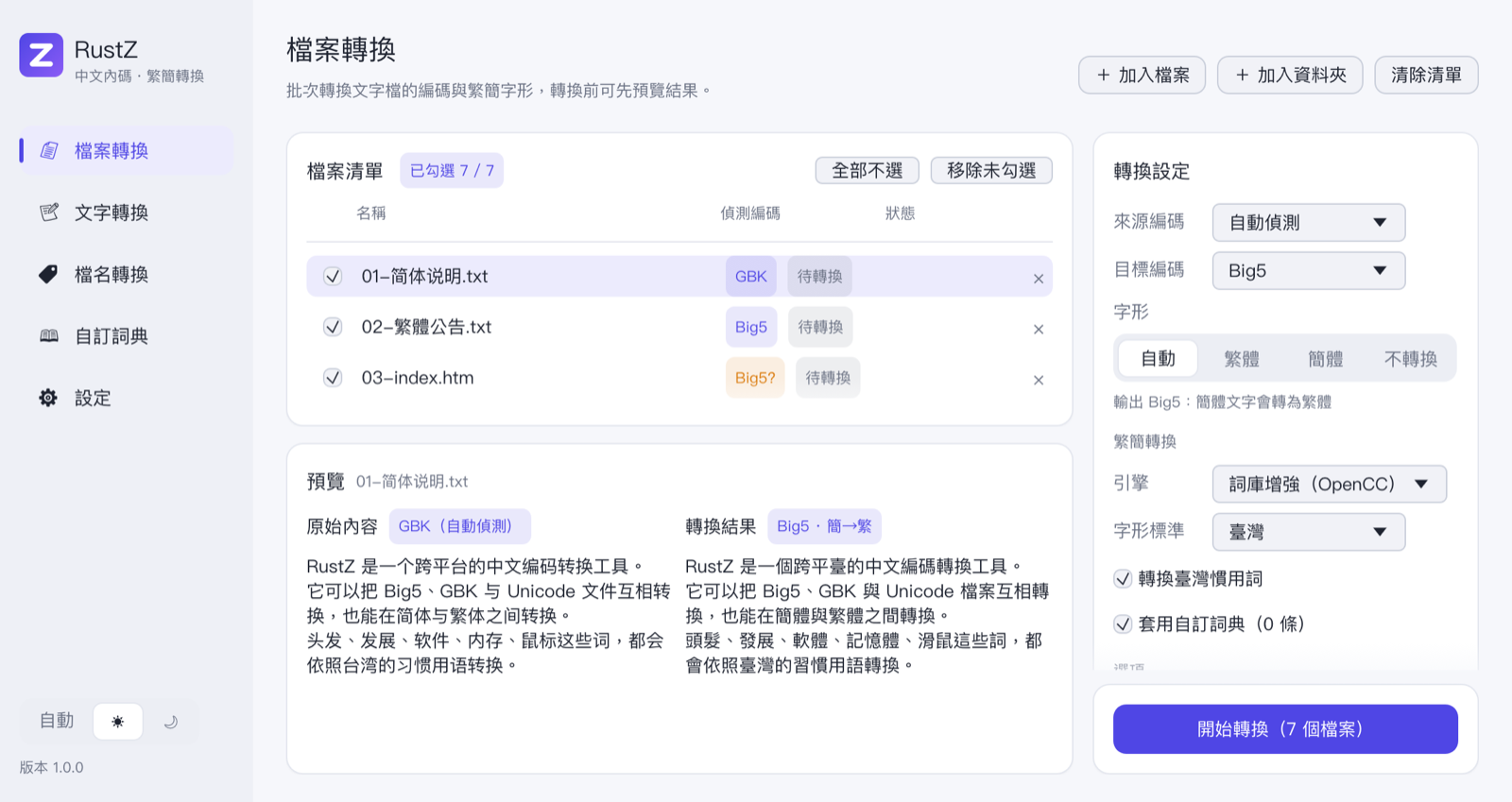
Each row ends up as 完成 (done), 無變更 (unchanged) or 略過 (skipped). Files already in the target format are not rewritten; files that look binary are skipped.
3. Use the command line
rustz-cli /n /s .              # just list the detected encodings, write nothing
rustz-cli /o:utf8 /s /b .      # convert the whole tree to UTF-8, with backups
rustz-cli /o:big5 gbk.txt big5.txt   # GBK Simplified → Big5 Traditional, new file
echo 简体中文的软件 | rustz-cli /o:utf8 /f:t -   # stdin → 簡體中文的軟體
The switches are compatible with ConvertZ's ConCmd. See Command line for all of them.
Wildcards on macOS and Linux
Quote wildcards ("*.txt") so RustZ expands them itself. Otherwise the shell expands them first, and two filenames may be read as "input file + output file". RustZ stops with an error in that case rather than overwrite anything.
4. Convert the clipboard
Copy some Simplified text, press 剪貼簿 簡 → 繁 (Clipboard Simplified → Traditional) on the text conversion page, and paste. With 關閉視窗後繼續在背景執行 (Keep running after the window is closed) on, the same commands are in the RustZ icon in the menu bar or system tray, no window needed — see Running in the background.
Next
- Feature list: everything RustZ does, at a glance.
- Manual: every option on every page.
- Conversion engines: how the two engines differ, and where the custom dictionary fits in.